Ecommerce product photography

Ecommerce Product Photography for Every Part of Your Store

Your product is ready to sell. Your store still needs images that can earn the click, help shoppers understand what they are buying, and give the product a reason to belong in your brand.

Start with one clear product photo, describe the next job the image needs to do, and create that store-ready direction in MakeAD.

KitchenAid Artisan stand mixer shown in one source-to-lifestyle comparison.
One recognizable KitchenAid Artisan mixer, shown from clear product reference to a believable kitchen placement.

Familiar products, shaped for different store placements.

See how campaign, listing, category, and catalog images give each product a clear job across the store.

Independent concepts, not official brand campaigns

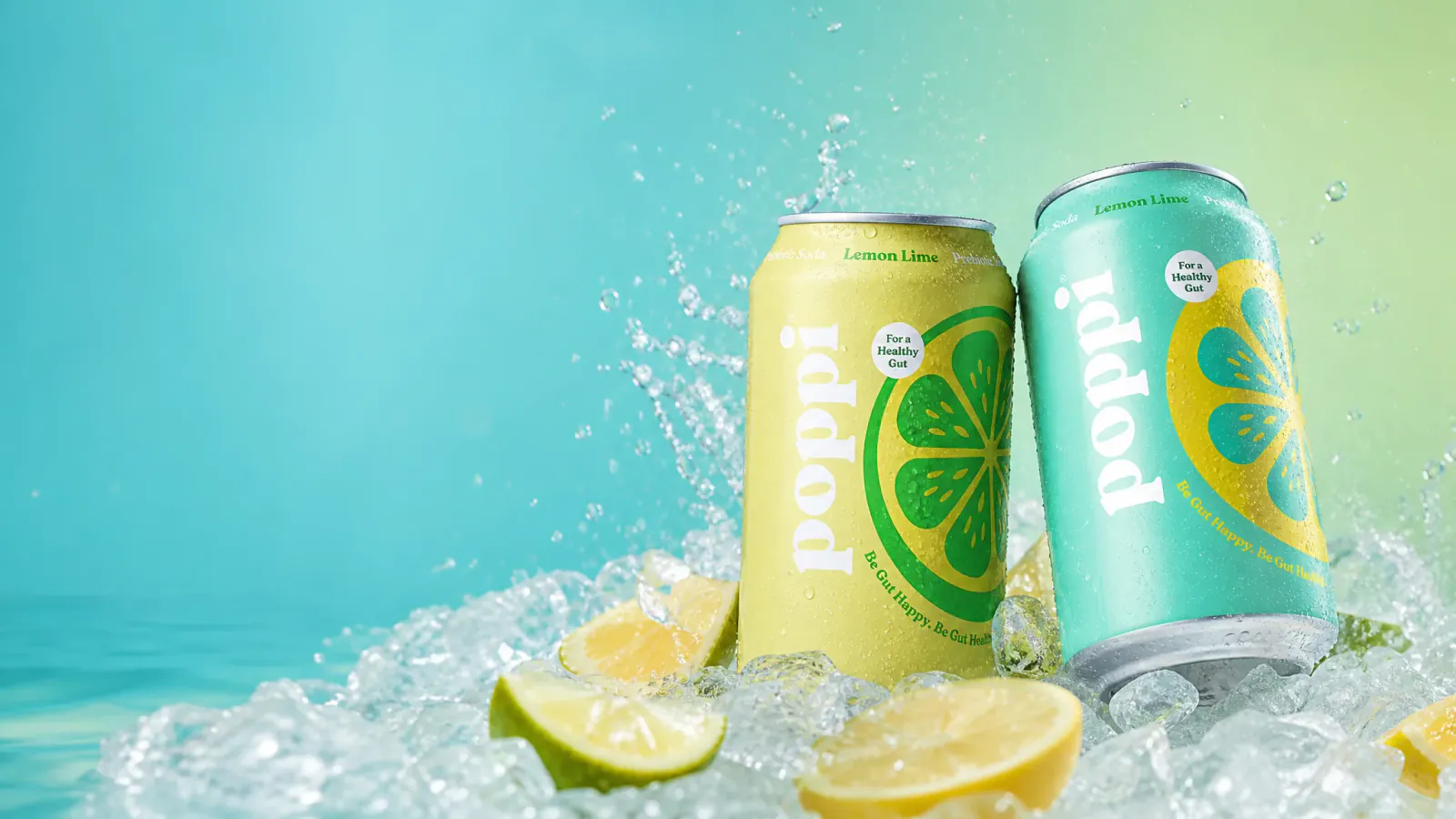
Independent storefront concept featuring Poppi Lemon Lime cans in a bright aqua citrus scene.
Poppi Lemon LimeStorefront campaign
Independent ecommerce concept featuring Apple AirPods Pro and their charging case on a silver-white surface.
Apple AirPods ProProduct listing
Independent ecommerce concept featuring CeraVe Hydrating Facial Cleanser in a bright clinical studio.
CeraVeCategory creative
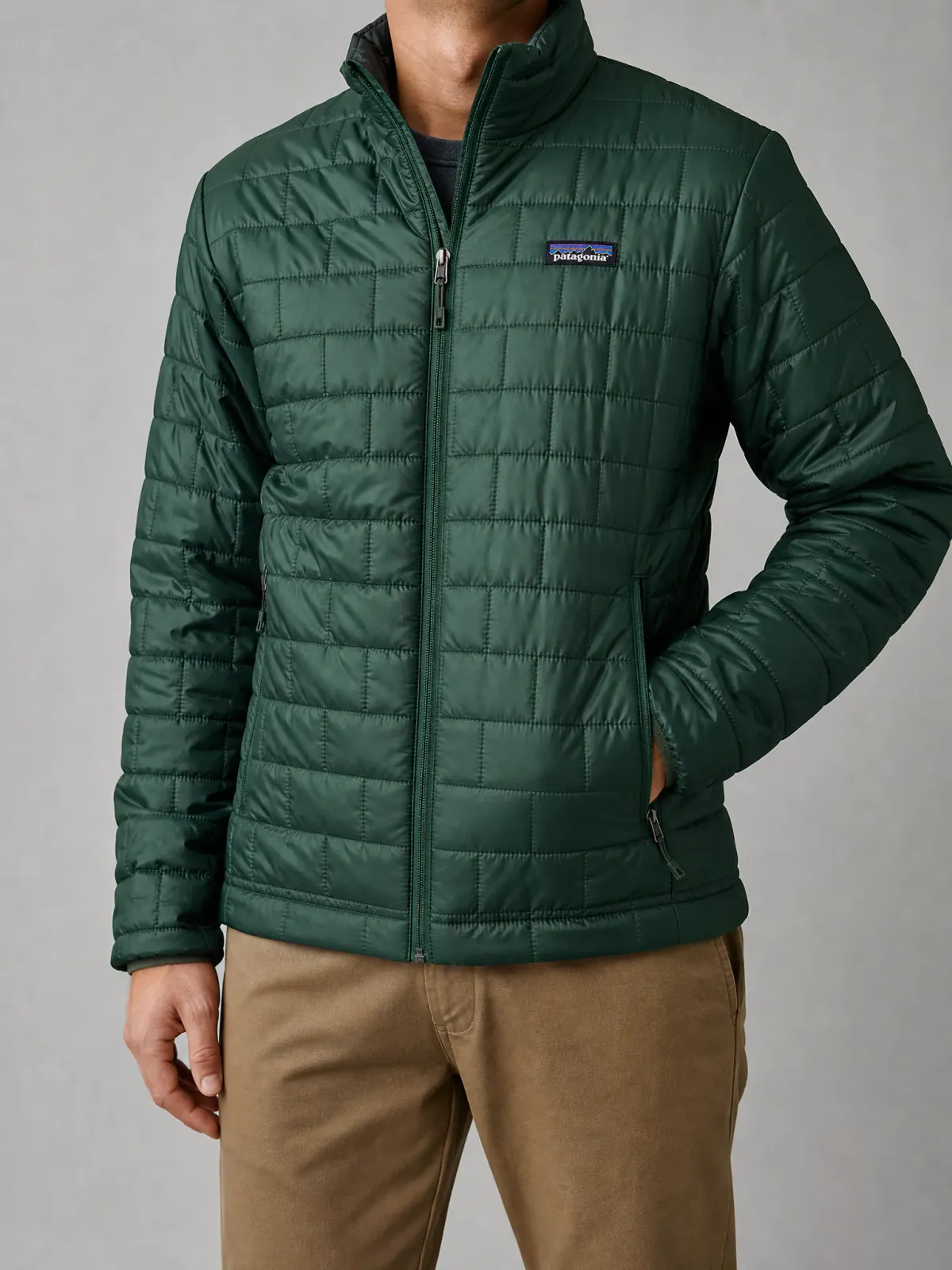
Independent ecommerce fashion concept featuring a Patagonia Nano Puff jacket on a model.
Patagonia Nano PuffApparel catalog
Independent ecommerce concept featuring a LEGO Botanicals orchid set in a cobalt studio.
LEGO BotanicalsPlayful product page

Match the image to the buying decision

Every Product Image Has a Job

Ecommerce product photography is not one universal image. A collection tile, a product-page view, and a storefront feature meet shoppers at different moments—so each one should answer a different question.

  1. Ray-Ban Original Wayfarer sunglasses in a square ecommerce collection composition.
    Get the click. Collection and category pages.
    01

    Get the click

    Make the product easy to recognize

    “Can I tell what this product is at a glance?”

    In a collection grid, the product has only a small area to earn attention. A clear silhouette, deliberate crop, and quiet setting help it stay recognizable beside the rest of the catalog.

    Collection and category pages

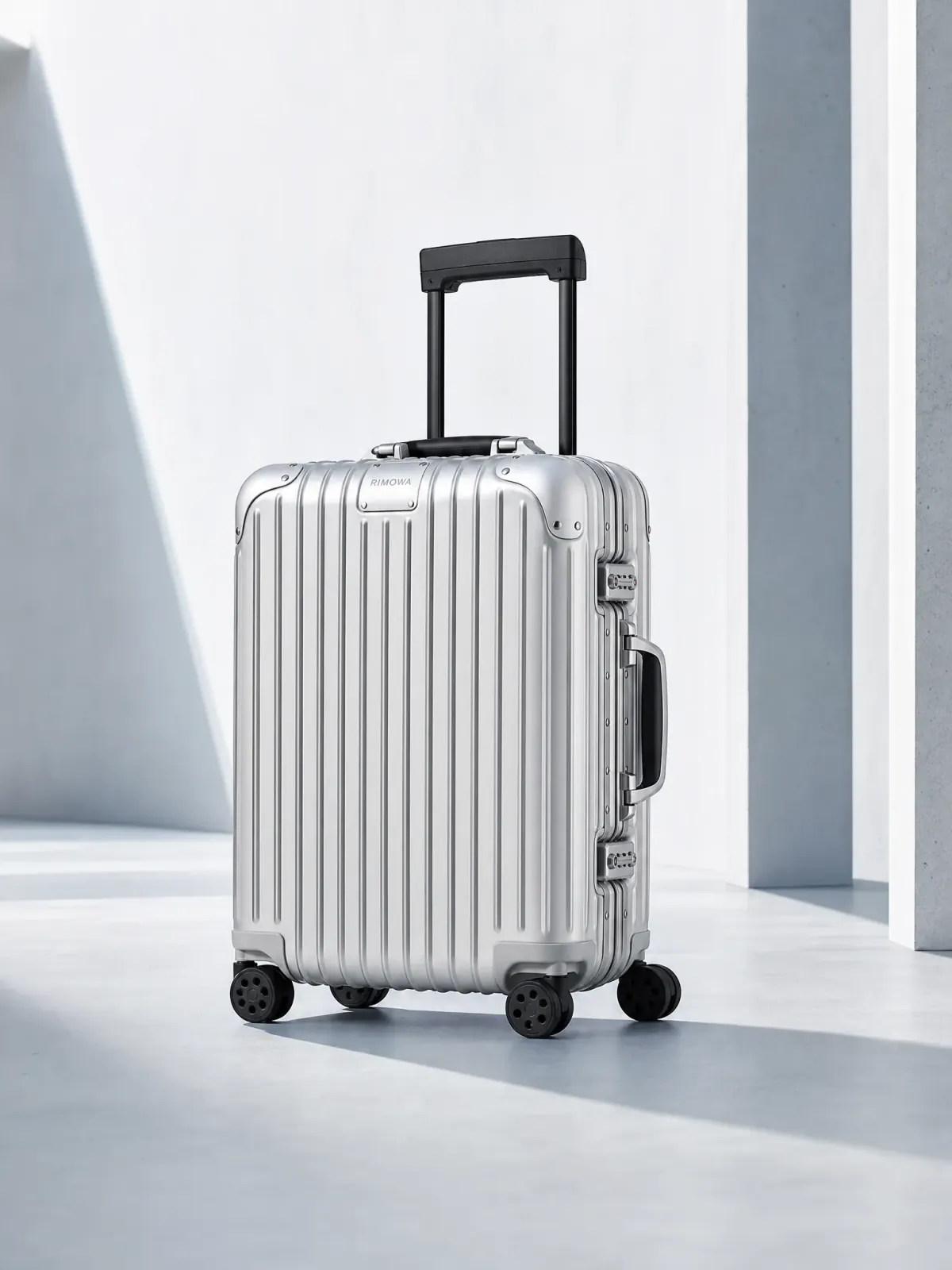
  2. RIMOWA Original Cabin suitcase in a clean portrait product-page composition.
    Answer the question. Product pages and product galleries.
    02

    Answer the question

    Give shoppers a closer product view

    “Does this image help me understand what I am buying?”

    A product-page image should keep the item complete and easy to inspect while adding enough setting to communicate material, scale, or intended use.

    Product pages and product galleries

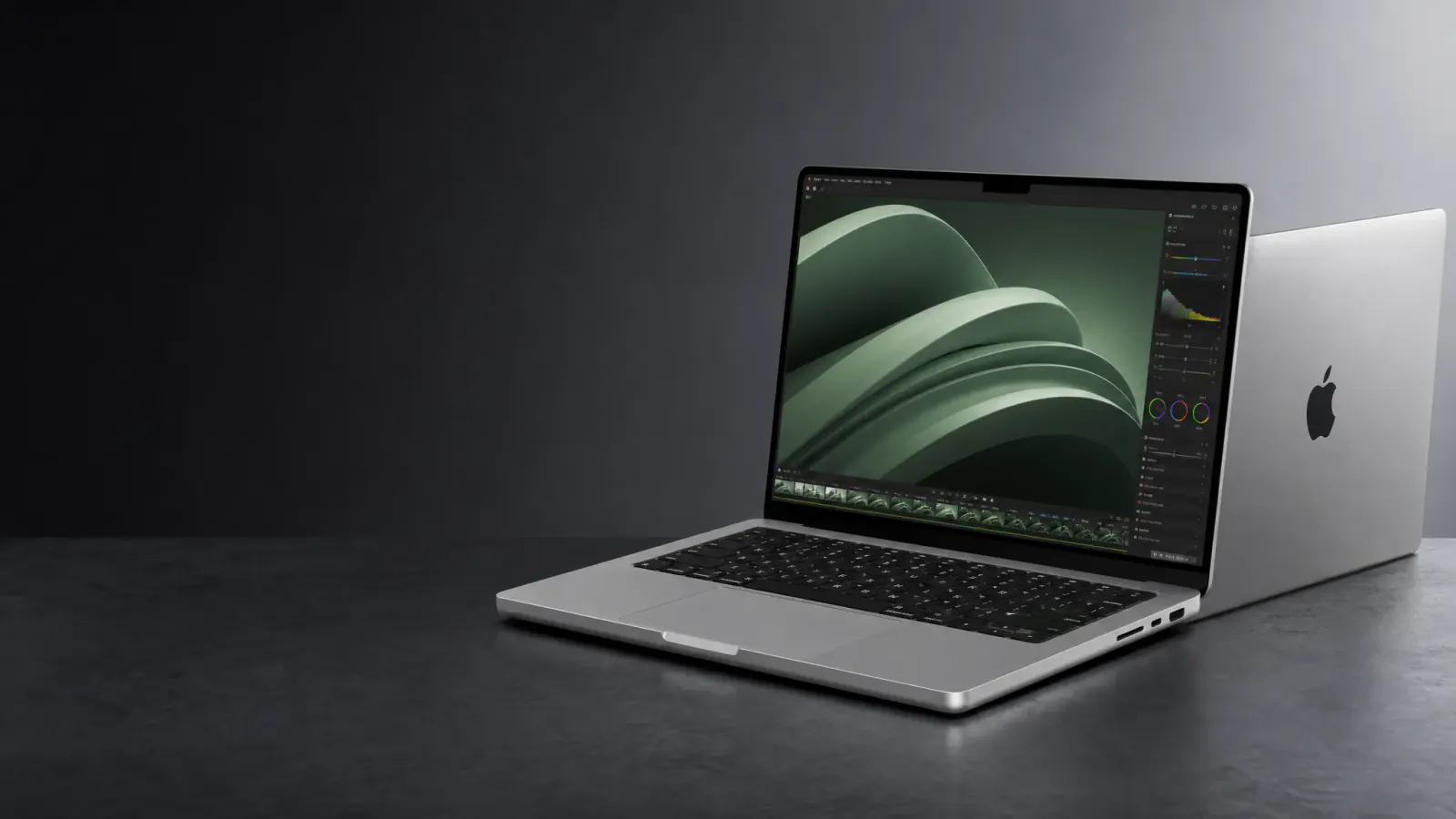
  3. Apple MacBook Pro in a wide dark storefront composition with open copy space.
    Create desire. Storefront heroes, launches, and promotions.
    03

    Create desire

    Turn the product into a store story

    “Why should this product matter to me now?”

    A storefront feature image needs a strong focal point and room for the page message. It can introduce a launch, collection, or seasonal direction without asking one product-page image to do every job.

    Storefront heroes, launches, and promotions

One source, three store roles

One Product Photo. Three Jobs Across the Store.

See how three familiar products take on three genuinely different ecommerce jobs: a compact collection image, a product-first detail view, and a wide storefront story. Each result begins with one clear product reference and is created for its own placement.

01Get the click

Collection and Category Images: Win the Click

“Can I tell what this product is at a glance?”

In a collection grid, the product has only a small area to earn attention. A clear silhouette, deliberate crop, and quiet setting help it stay recognizable beside the rest of the catalog.

Where it works
Collection and category pages
Example direction
Keep the complete Ray-Ban Wayfarer frame easy to recognize in a square, product-led composition on a cool silver surface.

Collection grid

Iconic essentials
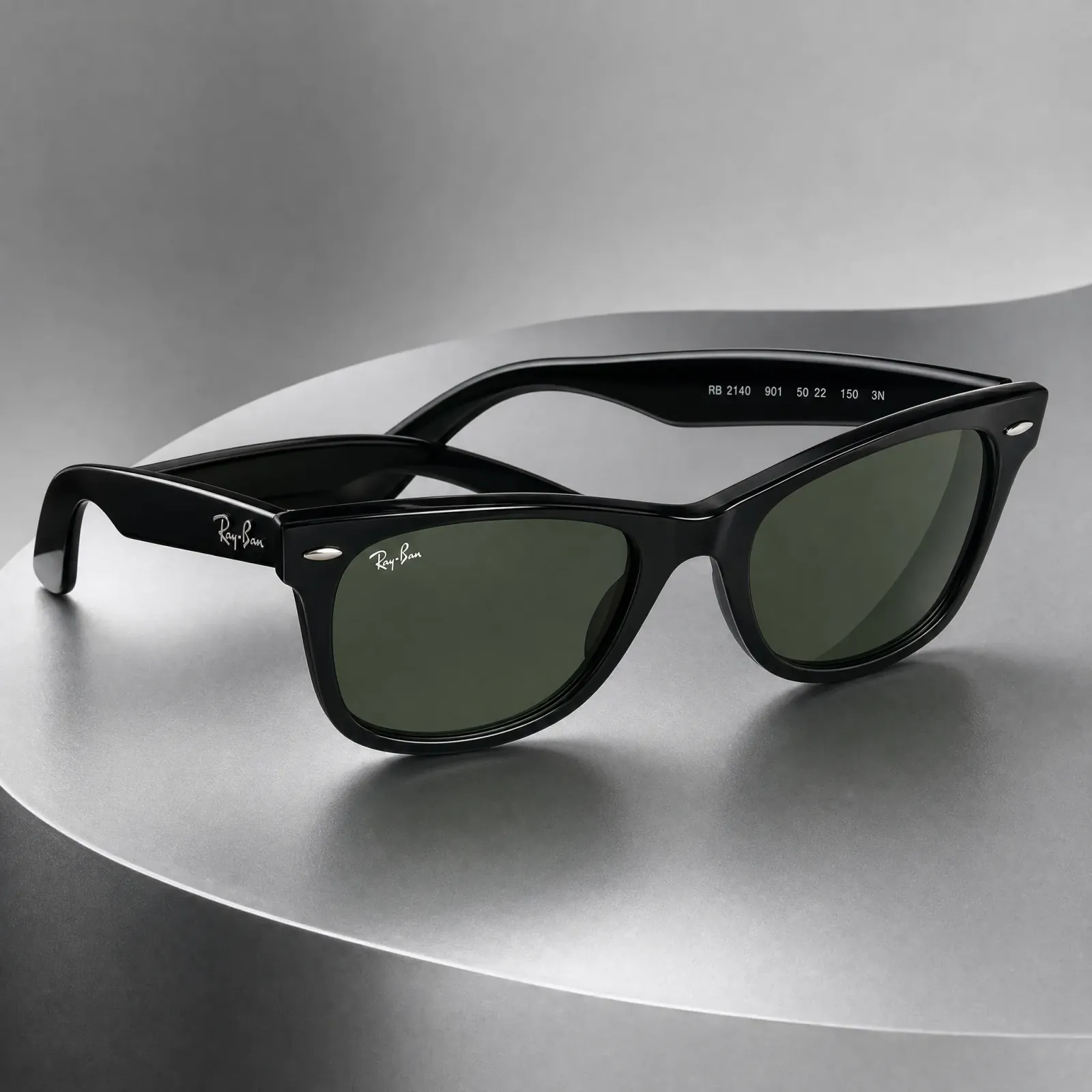
Ray-Ban Original Wayfarer sunglasses in a square ecommerce collection composition.

Ray-Ban Wayfarer

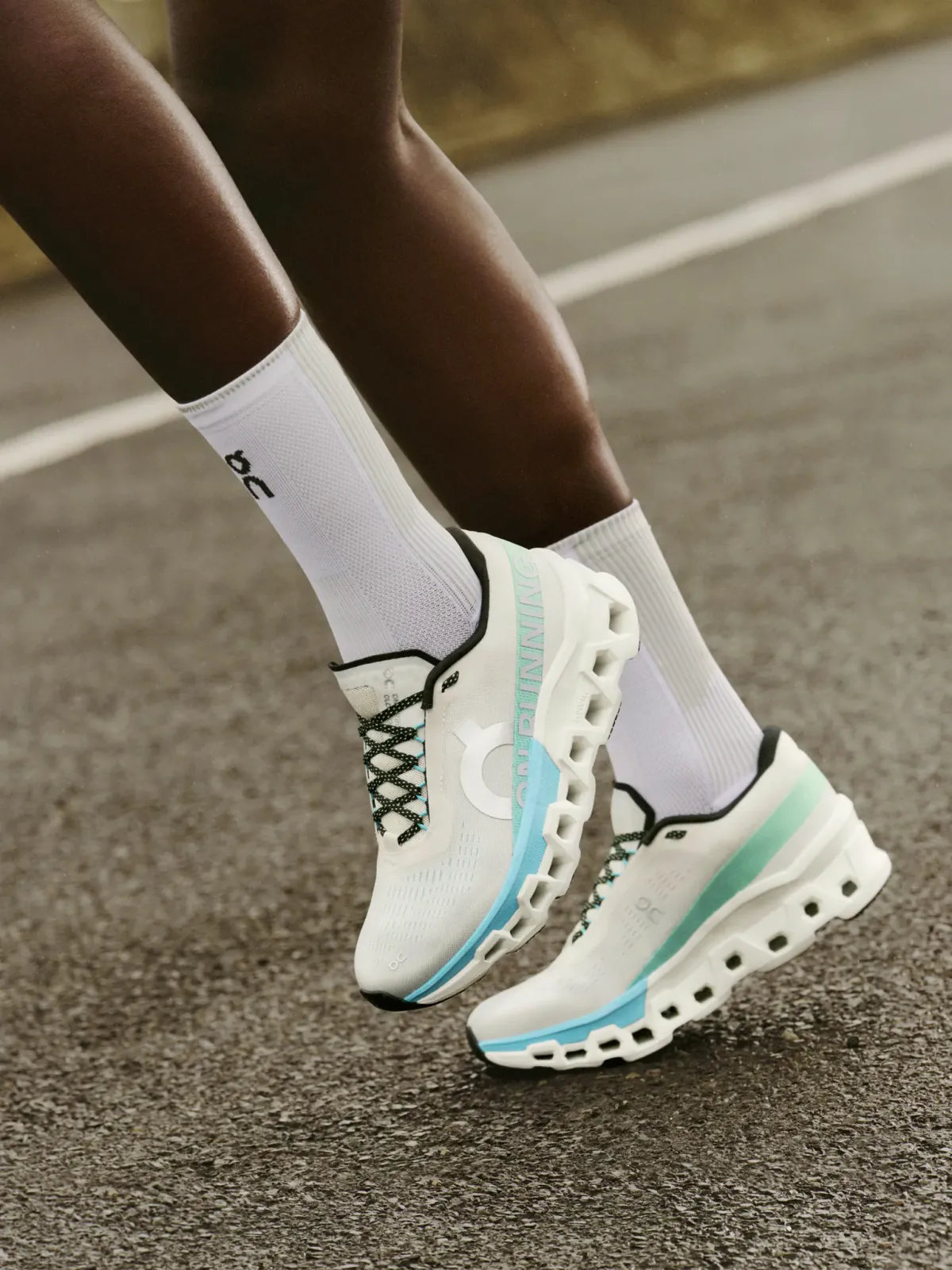
On Cloudmonster 2 shoes worn during an outdoor warm-up.
On Cloudmonster 2
Marshall Major V headphones in a product-led collection crop.
Marshall Major V
Get the click. Collection and category pages.
02Answer the question

Product Page Images: Answer Buying Questions

“Does this image help me understand what I am buying?”

A product-page image should keep the item complete and easy to inspect while adding enough setting to communicate material, scale, or intended use.

Where it works
Product pages and product galleries
Example direction
Create a clean, product-first portrait of the complete RIMOWA Original Cabin with material, grooves, and wheels easy to inspect.
RIMOWA Original Cabin suitcase in a clean portrait product-page composition.

Product page

RIMOWA Original Cabin

Aluminum craft, built to travel.

Add to cart
Answer the question. Product pages and product galleries.
03Create desire

Storefront Feature Images: Spark Desire

“Why should this product matter to me now?”

A storefront feature image needs a strong focal point and room for the page message. It can introduce a launch, collection, or seasonal direction without asking one product-page image to do every job.

Where it works
Storefront heroes, launches, and promotions
Example direction
Place the MacBook Pro on the right of a wide dark storefront composition, leaving calm open space on the left for the store headline.
Apple MacBook Pro in a wide dark storefront composition with open copy space.

Storefront feature

Power for the work ahead.

Create desire. Storefront heroes, launches, and promotions.

Online store photography

Product Photography for Your Online Store

Online product photography works best when you plan it by position, not by photoshoot. Whether you run your own webshop or sell through marketplaces, each place a shopper meets the product asks a different question—so a photoshoot for online products should produce a set of photos, each made for one position.

Use this as an online storefront photography checklist: what each position needs, and which MakeAD step can help you create it from the product photo you already have.

  1. 01

    Main image on a white background

    The first photo in a listing and the thumbnail in search results and collection grids. Show the complete product, centered and filling most of the frame, on a plain white or light background, with no added text, badges, or props that are not included.

    In MakeAD: the Background Remover cuts the product out as a transparent 1K PNG you can place on white, or you can describe a clean white studio background in a new request.

  2. 02

    Detail and lifestyle images

    The next gallery positions answer what the main image cannot: material, texture, finish, and how the product looks in real use. A lifestyle photo places the product in a believable setting so shoppers can picture owning it.

    In MakeAD: upload the product photo and describe the scene in ordinary language, or use Product Staging to create a 4:5 scene image.

  3. 03

    Views from more than one angle

    Shoppers cannot pick the product up, so front, side, and back views do that work for them. Keep lighting and background consistent so the angles read as one product rather than three unrelated photos.

    In MakeAD: the 360 product photography tool creates three coordinated views—front three-quarter, side profile, and rear three-quarter—from one product photo. An interactive 360 spin still needs a turntable shoot of the real product.

  4. 04

    Size reference

    A size reference photo prevents returns caused by the wrong expectation. Show the product in a hand, beside a familiar object, or in the room where it will be used.

    In MakeAD: describe a scale-reference scene in a request. When exact dimensions matter, photograph the real product with a ruler or state the measurements in your listing text; an AI scene is not proof of size.

What most marketplaces have in common

Amazon, Etsy, eBay, and other marketplaces each publish their own image rules, but product photos for marketplaces tend to share the same basics:

  • Large, sharp files so shoppers can zoom in on details.
  • One aspect ratio kept across the gallery so thumbnails line up.
  • The product filling most of the frame in the main image.
  • Color, material, and included items that match what the buyer receives.
  • No watermarks, borders, or promotional text on the main image.

Rules change, so check each marketplace’s current image requirements before you publish.

Where MakeAD fits in your store workflow

Upload one JPG, PNG, or WebP product photo of up to 10 MB, describe the image you need, and choose an aspect ratio such as 1:1, 4:5, or 16:9, a 1K, 2K, or 4K resolution, and a PNG, JPEG, or WebP file. Each request creates one completed image, so build the online store set position by position—and keep real photos wherever exact text, dimensions, or included items must be shown.

Customer evidence

Made for Real Store Work

The value is not another polished demo. It is being able to turn the product photo already on hand into images a store can actually publish—and to make that production viable across more products and more campaigns.

LIVE USE

“The serum shots I made here are the actual main images on our Shopify listings right now. Uploaded the bottle, ran Soft Minimal at 4:5, and those are the exact photos customers see. Nothing got swapped for a "real" shoot later.”
Priya_MSkincare brand

PRODUCT ACCURACY

“I was sure the fine details would turn to mush. They didn't. The prong setting, the little engraving, the way the metal catches light — it all held. The stone still looks like our actual stone, so I'm comfortable putting these on the product page.”
Naomi_KJewelry brand

COST & PRODUCTION

“One studio session for our candle line used to run about $600 once you add the photographer and half a day of retouching. I've replaced most of that. The real win is our $12 SKUs finally get proper shots instead of a phone photo on a table.”
Rachel_TCandle brand

DAILY USE

“Coming up on four months. I've pushed past 200 SKUs through it for seasonal refreshes, and every new shade or bundle, it's the first tab I open. That's how the trial quietly turned into an annual plan.”
Sofia_DBeauty ecommerce team

From existing photo to next store image

Create the Next Store Image From the Product Photo You Already Have

MakeAD connects the product reference, creative direction, output choices, and completed result. The work stays organized around the image you are trying to create—not a generic list of editing tools.

DJI Mavic 3 Pro drone photographed on a clean silver studio background.
01Start with the productDJI Mavic 3 Pro · Source photo
DJI Mavic 3 Pro source photo paired with an empty alpine background plate for the requested store image.
02

Describe one store image

Ordinary-language request

“Place the DJI Mavic 3 Pro at a dramatic alpine overlook while preserving its camera, graphite finish, and exact silhouette.”

Current output choices: Visual style: Auto / 2K / PNG

DJI Mavic 3 Pro drone in a mountain campaign scene.
03Review the resultDJI Mavic 3 Pro · Completed outdoor image

One clear direction creates one completed image. Start another request when your store needs a different job, crop, or composition.

Start from the product photo you already have

Use an existing product image as the reference for a new store direction instead of rebuilding every visual from an empty canvas.

Describe the image by the job it needs to do

Ask for a collection crop, a product-first scene, or a wide storefront composition in the same language you would use in a creative brief.

Choose an output that fits the placement

Select the aspect ratio, resolution, and file format that suit the image you are creating.

Keep the next direction connected to the work

Review the request and result together, regenerate the direction, use a completed image as a new reference, or download the version you want.

Questions before you start

Ecommerce Product Photography: Questions Before You Create

What is ecommerce product photography?

Ecommerce product photography is the set of commercial images used to present and sell a product online. It can include clear product-page photos, collection images, and wider storefront or campaign visuals, with each image designed for a different part of the buying journey.

What product photos does an online store need?

Most online stores need a main image on a clean white or light background, detail and lifestyle images, views from more than one angle, and a size reference. Collection grids and storefront banners then reuse or extend that set with their own crop.

Do marketplaces have the same product photo requirements?

They share the basics—large, sharp files, the product filling the main image, accurate color, and no watermarks—but each marketplace sets its own sizes and rules. Check the current requirements of every marketplace you sell on before publishing.

What kind of product photo should I start with?

Start with a clear, in-focus image that shows the complete product and the details shoppers need to recognize. Choose an angle that supports the new collection, product-page, or storefront image you want to create.

What ecommerce product images can I create in MakeAD?

Create product-led images for product pages, collection and category cards, or storefront feature areas. You can describe the setting and composition, then choose the visual style and output for that image.

Can I use a MakeAD image on Shopify or Etsy?

Download the finished image and add it to Shopify, Etsy, or another store or channel. Match the crop and file to its placement, and check the channel’s latest requirements before publishing.

Can I build a complete product-page gallery?

Each request creates one completed image. Build the gallery image by image so the main product view, supporting scenes, and wider store visuals each get the crop and composition their job needs.

How should I handle exact packaging text or product claims?

Keep a photograph of the real product wherever packaging text, dimensions, included items, or regulated claims must be shown exactly. Use MakeAD for the new visual directions around that factual product evidence.

Create with MakeAD

Create the First Image Your Store Needs Next

Start with one clear product photo. Decide what the next image should help the shopper understand, then create that direction in MakeAD.